Quality Gates Beat Quality Hopes: Enforcing Solution Checker on Import
Diesen Beitrag auf Deutsch lesen
How Managed Environments can block or warn on critical solution issues at import time, the PowerShell to turn it on across environments, and where to set exclusions.
TL;DR
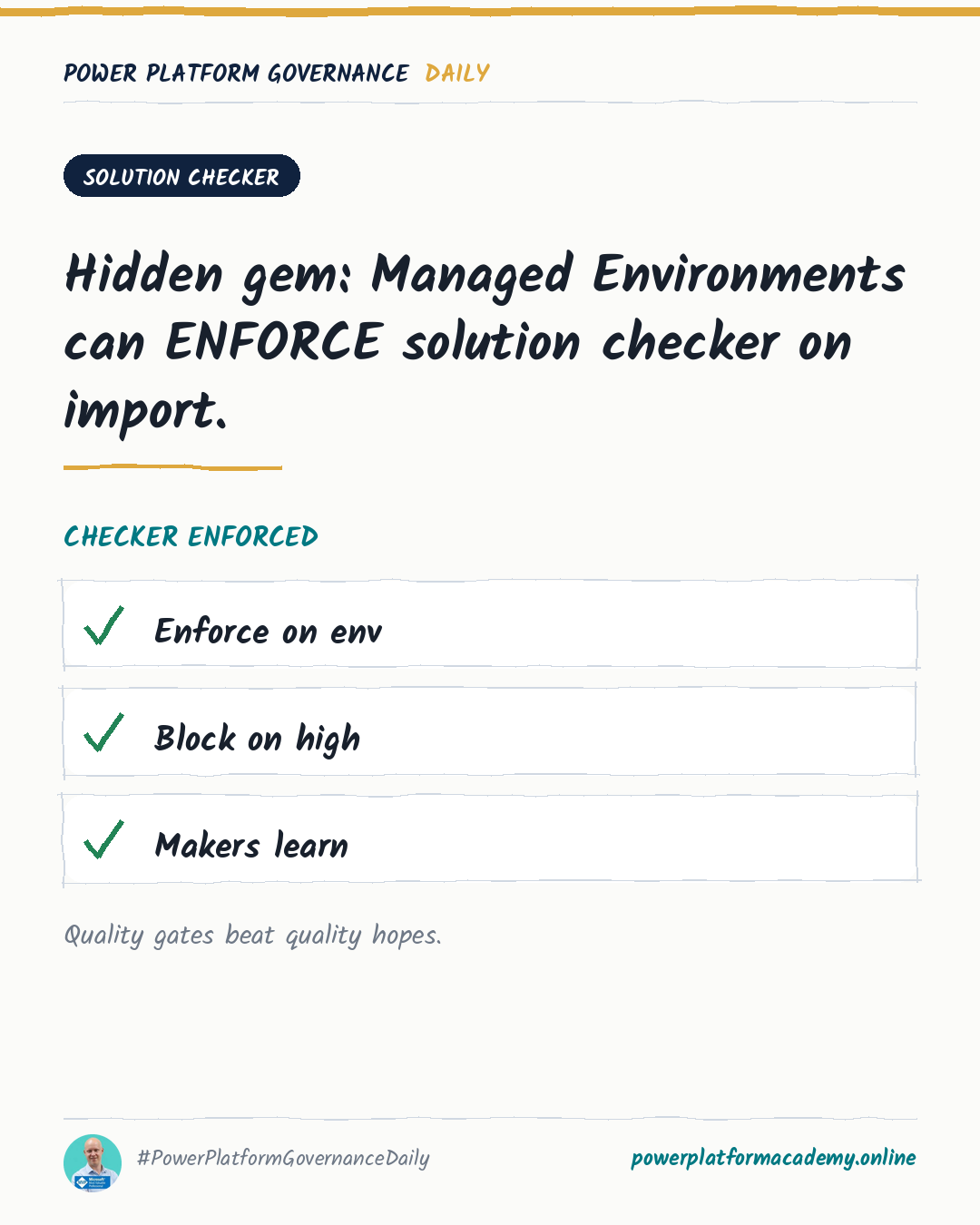
Solution checker enforcement in Managed Environments turns the solution checker from an optional habit into an automatic gate: every custom solution gets statically analyzed the moment it’s imported, and you choose whether critical issues just warn (import proceeds, admins get an email) or block (import is cancelled outright, before anything touches the environment). It’s a tenant-side control, not something a maker can skip by forgetting to click “run checker” — and it can be turned on with a single PowerShell command per environment.
Why “we ask makers to run it” doesn’t hold
Solution checker itself has existed for years as a manual action in Power Apps: open a solution, right-click, run the checker, read the report. The problem was never that the tool is weak — its rule set genuinely catches duplicate plug-in registrations, missing filtering attributes, deprecated patterns, and other issues that quietly degrade performance or block future upgrades. The problem is that “ask makers to run it” is a habit, and habits skip themselves under deadline pressure. A solution that never gets checked behaves, from a governance perspective, exactly like a solution that passed with critical violations.
Enforcement removes the habit dependency by moving the check to the one moment every solution has to pass through anyway: import.
The three enforcement levels
Managed Environments expose one setting, Solution checker enforcement, with three states:
- None — no automatic validation; behavior is unchanged from a non-managed environment.
- Warn — every custom solution import runs the checker automatically. If critical issues are found, the import still completes, but a message flags it and a summary email goes to Power Platform administrators and Dynamics 365 service administrators (plus anyone subscribed to the weekly digest).
- Block — same automatic check, but a critical violation cancels the import before it touches the environment at all. Nothing changes in the environment when a blocked import fails; the maker gets the same violation report and has to fix the issues before retrying.
Only critical-severity rules can trigger a block or the warning message — medium and low findings surface in the report but never stop an import.
Setting it per environment type, and where to bend it
Microsoft’s own adoption guidance for enterprise-scale tenants suggests a deliberately asymmetric setup rather than one blanket policy:
| Environment type | Enforcement | Send emails |
|---|---|---|
| Default | Block | Yes |
| Developer | Warn | No |
| Sandbox | Warn | No |
| Production | Block | Yes |
| Teams Environment | Block | Yes |
The logic is straightforward: developer and sandbox environments are where makers are supposed to be iterating and occasionally breaking things, so a hard block there just adds friction without adding safety. Production and the Default environment are where a critical issue actually costs something, so those get the hard gate.
You can exclude specific rules from enforcement — useful when one rule requires more rework than the timeline allows but you still want everything else enforced. Rule exclusions are configured per environment (or inherited from an environment group) in the same settings pane, listed by category and severity.
Turning it on with PowerShell
Doing this by hand across a real environment estate doesn’t scale, so Microsoft ships PowerShell functions for it (from the Microsoft.PowerApps.Administration.PowerShell.Samples module):
1
2
3
4
5
6
7
8
9
10
11
# Block mode
SetManagedEnvironmentSolutionCheckerEnforcementLevel -EnvironmentId <env-id> -Level block

# Warn mode
SetManagedEnvironmentSolutionCheckerEnforcementLevel -EnvironmentId <env-id> -Level warn

# Off
SetManagedEnvironmentSolutionCheckerEnforcementLevel -EnvironmentId <env-id> -Level none

# Block mode with rule exclusions
SetManagedEnvironmentSolutionCheckerEnforcementLevel -EnvironmentId <env-id> -Level block -RuleExclusions "web-use-async,web-use-offline"
If an environment is already part of an environment group with a defined configuration, its enforcement settings are inherited from the group and can’t be edited individually per environment — which is usually what you want, since it’s one more thing that doesn’t drift environment by environment.
Who this matters to
- Admins/CoE: pair the enforcement level to what the environment is actually for — Warn in developer/sandbox so makers see the report without losing their import, Block in production and Default where a critical issue has a real blast radius.
- Makers: a blocked import isn’t a mystery — the same report solution checker has always produced tells you exactly which rule failed and links to how to fix it, so treat a block as the checker doing its job earlier, not as a wall with no way through.
- Leadership/Business: this is a genuinely free control — it costs one PowerShell command per environment and catches issues before they reach production, not a tool investment or an ongoing review someone has to remember to run.