How to Build Power Platform Data Policies Without Breaking User Apps
Diesen Beitrag auf Deutsch lesen
Use Business, Non-Business and Blocked connector groups, scoped environments and monitoring to protect data without driving shadow IT.
TL;DR
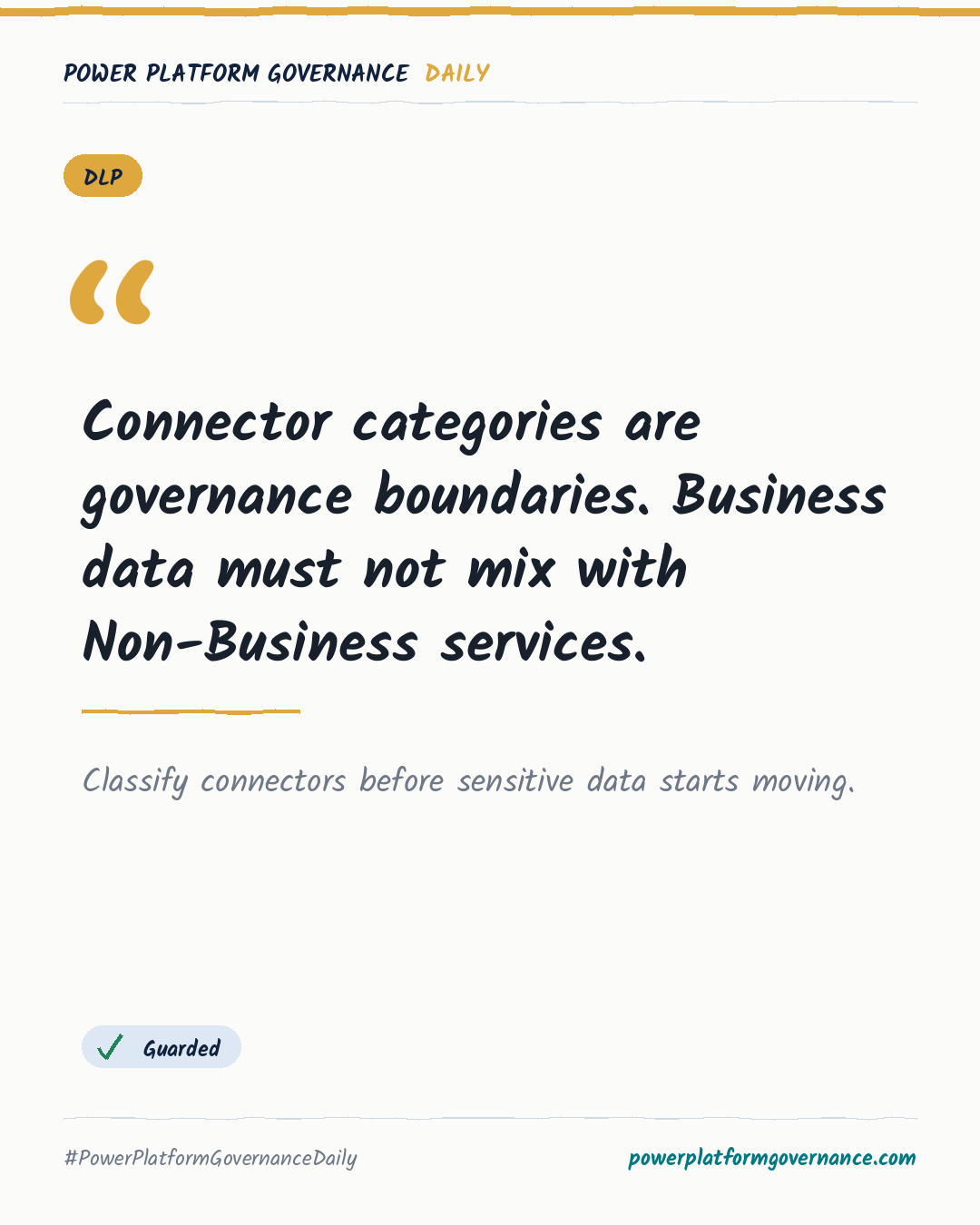
Power Platform DLP policies classify connectors as Business, Non-Business or Blocked. Business connectors cannot share data with Non-Business connectors, while blocked connectors cause apps and flows to fail. Admins can use separate developer and production environments, then monitor enforcement with the CoE Starter Kit and Power Platform admin center reporting.
Original on M365 FM Podcast. Read the original · suggested by Mirko Peters
This is our own summary, not a republication or full translation.
Governance takeaway
- Admins/CoE: Classify connectors into Business, Non-Business or Blocked groups and review new connectors as they appear to prevent unsafe data flows.
- Makers: Use designated developer sandboxes for experimentation and expect stricter policies when apps move into production.
- Security/Compliance: Review telemetry and reporting for policy violations, broken apps and rules that are too restrictive or too loose.
Frequently asked questions
How do Business and Non-Business connector groups work in Power Platform DLP policies?
Business connectors can share data with other Business connectors, but they cannot share data with Non-Business connectors. This limits exposure to public services.
What happens when a Power Platform DLP policy places a connector in the Blocked group?
Apps or cloud flows that call a blocked connector fail immediately. Administrators can use this group for unauthorized file sharing or unvetted AI tools.
How can Power Platform DLP policies differ between developer and production environments?
Administrators can scope DLP policies to specific environments. Developer sandboxes can use relaxed rules, while production environments enforce stronger controls.